Tuesday, May 30, 2017
how to create whats app group and how to make someone group admin
how to create whats app group and how to make someone group admin
HOW TO CREATE WHATS APP GROUP
whats app is no more new to everybody ,i believe almost everybody uses whats app to chart,send pictures,video,images,voice chart and make calls provided that u and your partner have subscription(Mb) on your phone.
i will be using this tutorial, to explain how to create whats app group and make someone admin in your group
Do you know you can have more fun creating your own whats pp group? if no or yes just fellow the steps below and see how it work i believe you will like it
STEP 1 Go to whats app and press option button use will see a display like this below
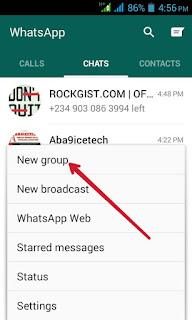

HOW TO MAKE SOMEONE GROUP ADMIN
Do you can have more than 1or even up to 10 admin in a group. it depend on how the person that created the group want It ,making someone admin is very easy just fellow steps click the group name at the top and scroll down you see a display like this below
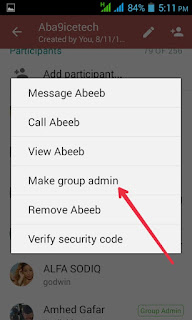
Then after getting to the name of the person you want to make admin then click it, you see a display like the above snapshot you can see the arrow is facing make group admin click it at all. the person is now admin and the person can also visit friends to the group and even make someone group admin too.so can enjoying guys no dulling moment.
if you have any questions please use the comment box and we shall get back to you.
Go to link for download

How To Download Skype Iphone Pc
How To Download Skype Iphone Pc

Eight Ways On How To Download Skype | Iphone, Pc
Go to link for download
Friday, May 26, 2017
How to Type Bold Italics and Strikethrough Text to WhatsApp Messages
How to Type Bold Italics and Strikethrough Text to WhatsApp Messages
Step #1. Launch WhatsApp messenger from your iPhone Home Screen.
Step #2. Select any of your friend with whom you would like to try this new options.
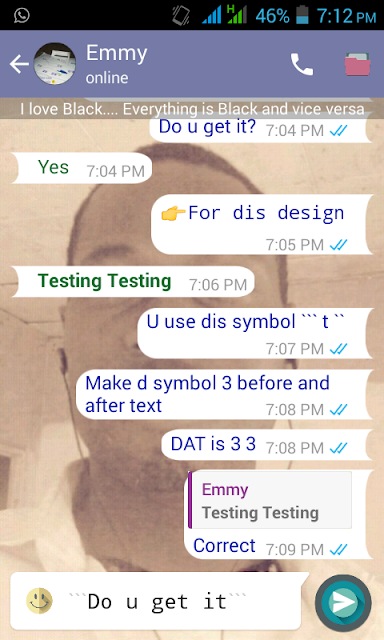
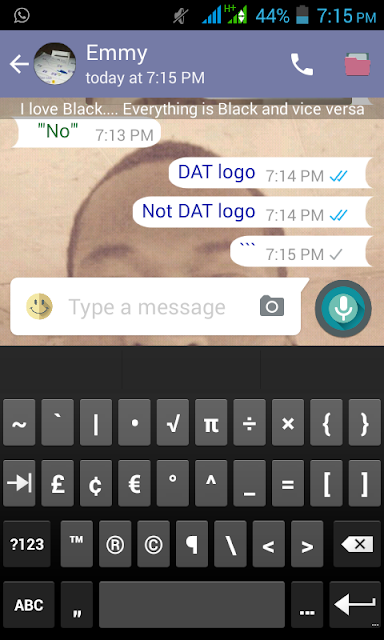
Step #3. Now to add Bold formatting, just add (asterisk) “*” before and after the text. For example, *Hola!* . Hit the
Send button, and WhatsApp will automatically make it bold.
Step#4. In order to type in Italics, you’ll need to add (underscore) “_” before and after the text. Same like Bold formatting, WhatsApp will now convert the text to Italics.
Step #5. The last and the final is Strikethrough. In order to use that, you’ll need to add (tilde) “~” before and after the text.
Watch out how
Go to link for download
Sunday, May 21, 2017
how to Unlock your Android device using Android Device Manager ADM
how to Unlock your Android device using Android Device Manager ADM

Go to link for download
How to use whatsapp on pc
How to use whatsapp on pc
In spite of the fact that you can utilize it on the web, WhatsApp has propelled a desktop application for Windows and Mac. Heres the way to setup and utilize WhatsApp on any Windows PC or portable PC. See likewise: Best WhatsApp tips and traps.
The new desktop application (likewise accessible for Mac clients) will be a genuine help for a few clients. WhatsApp no longer needs to take up a tab in your web program. "Like WhatsApp Web, our desktop application is basically an expansion of your telephone: the application mirrors discussions and messages from your cell phone," said the firm.
Points of interest of utilizing the WhatsApp desktop application incorporate legitimate local desktop warnings and player console easy routes. All you require with the end goal for this to work is WhatsApp introduced and taking a shot at your telephone and Windows 8 or later.
Get some answers concerning the WhatsApp boycott.
The most effective method to setup and utilize WhatsApp on Windows
Step One
Make a beeline for WhatsApp and download the Windows desktop application. Click Save when the case
Step Two
The setup may run naturally, generally make a beeline for your downloads envelope and run the WhatsAppSetup.exe document.
Step Three
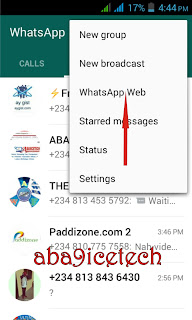
Presently what you have to do is sweep the QR code on the screen with your telephone utilizing WhatsApp. (Open WhatsApp, click Menu and select WhatsApp Web).
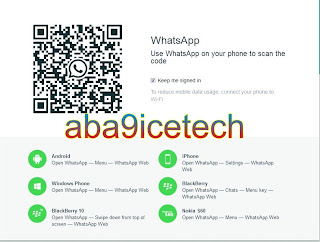
Step Four
Once the QR code is perceived, the desktop application for Windows will be connected with your record and youll be naturally signed in. You can now utilize WhatsApp on your PC.
Note: Since the desktop application utilizes your portable to match up messages, youll likely need to ensure its associated with Wi-Fi to abstain from racking up any strong bills for information use.
Go to link for download
Saturday, May 20, 2017
how to hide whatsapp from sharing your contact to facebook
how to hide whatsapp from sharing your contact to facebook
, "WhatsApp will share your phone number with Facebook’s system." and your WhatsApp account might be receiving advertisements from companies. However, if you live this new this feature, then no qualms. but if you dont like it, no cause to cry out loud as they also created a way to opt-out from it. So follow me along. If you have already opted in by accepting the new terms and conditions that is now popping up on WhatsApp app, you will apply the second method but if you are yet to see or accept the terms, use the first method.
HOW TO OPT OUT OF WHATSAPP NEW FACEBOOK TERMS. h When you launch your updated WhatsApp application, you will see a page that asks you to tap agree on new terms and privacy policy on the screen, just follow below steps:
1. Hit/Tap Read 2. Uncheck Share my WhatsApp account information with Facebook… (See why you need to read the terms and conditions being approached?) Whereas, if you have already agreed to this terms and services ignorantly and wish to opt out, follow this second method For iOS users only 1. Open your WhatsApp
2. Go to Settings > Account.
3. Uncheck Share my account info. For Android users only 1. Open your WhatsApp 2. Tap the three dots icon on the top-right.
3. Tap Settings > Account.
4. Uncheck Share my account info.
NOTE: After 30 days, you might not be able to opt out again. Although Opting out option is just a pardon / consolation, by closely reading their privacy policy, you will see that it still shares your data and whatsapp it’s not all that private again. So checking that option might not still guarantee 100% safety but your chats and messages are still encrypted i.e end to end. Have you seen or noticed this info notification on your WhatsApp(all Devices)

Go to link for download
How To Activate Etisalat 250MB For N50 Night Data Bundle
How To Activate Etisalat 250MB For N50 Night Data Bundle
Hope You can still remember that Airtel already offer you N25 for 500MB while MTN offers the same N25 for 500MB for night crawlers and heavy downloaders? But Etisalat on the other hand lately realized that subscribers need a cheaper night plan hence decided to launch their own package.
The new Etisalat night plan cost N50 for
250MB and is available for Easycliq tariff plan. The night plan works on all smartphones, PC and Tablets.
NOTE that it’s only usable from 12:00 AM to 5:00 AM !
✔️ Migrate to Easycliq tariff plan by dialing
*244*1#
✔ ️Make sure you have minimum airtime balance of 50 Naira.
✔️ Dial *229*10*10# to activate 250MB for N50 (12:00am- 5:00am).
SHARE THIS
Tag(s): Etisalat
Etisalat NG 250MB for N50 Latest Night Plan
How To Activate Etisalat 250MB For N50 Night Data Bund

Go to link for download
Thursday, May 18, 2017
How To Get Free 1GB On Etisalat Sim’s
How To Get Free 1GB On Etisalat Sim’s
Etisalat is one of the fastest networks in Nigeria especially when it comes to browsing and as they has launched their 4G LTE, their network is now faster. I have successfully activated 20GB on my Etisalat sim and currently browsing the internet.
This free 1GB or more works on desktop, PC and other gadgets you know that can access the internet. Using modem will be more suitable to connect your Etisalat with your PC as we all know. So let’s forget story and see how to activate this offer.
How To Activate Etisalat Free 1GB Or More
Firstly, you have to Analyze and tweak/change your imei to this IMEI number 359838075475772
After that, dial this code *8186
*092840413028038# up to 10 to 20 times.
Then you will receive this message saying ” Congratulations! Your free 1GB data has been successfully activated, data is valid till 11/03/17.”
So you can now start browsing.

Go to link for download
How to make your Bluetooth icon appear on your Computer System
How to make your Bluetooth icon appear on your Computer System
it is so annoying at times, when you want to use Bluetooth to send or receive information , and you are unable to find the Bluetooth. today i will be giving you simple step to find your Bluetooth easily on computer system.
Step 1
click the Start button, then press change Bluetooth like the screenshot below
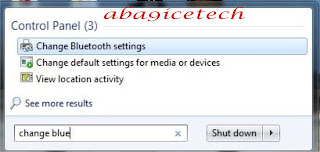
After that click the change Bluetooth settings another pop message will paper like below
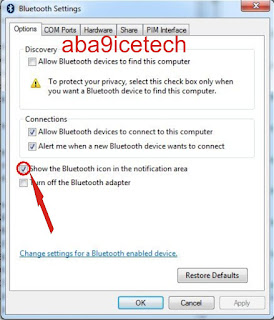
then you will tick show Bluetooth icon the notification area and press Ok after that the Bluetooth logo will appear on the task bar like below snapshot
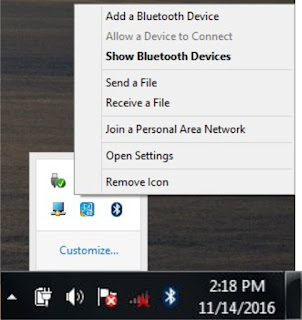
Go to link for download
Monday, May 15, 2017
how to install new template to blog
how to install new template to blog
Many are into blogging but still find it difficult to install template to blog their blog. Now, lets assume you have the .xml file of the template you want to upload. Just follow me through the steps below, to install it to your Blogger blog:
- Sign in to www.blogger.com and click on your blog in the dashboard
- Back up your blogger template. Very Important! (To be sure your template is save)
- Click on "Template"

- Click the Backup/Restore button located at the upper right corner of the screen
- ==> A popUp similar to the screenshot below will appear

- Click "Browse". Select the .xml file of the template you want to install
- Click "Upload".
Preview your blog and if everything is fine, hit the Save Template button.
If upload is successful, you should notice the changes once you view your blog in your browser.
Thats all.
for any questions use the comment box and we shall get back to you
Go to link for download
Sunday, May 14, 2017
How To Unsubscribe Deactivate Glo Callertune 1 service
How To Unsubscribe Deactivate Glo Callertune 1 service
Many telecoms providers especially in Nigeria really do deduct money from its subscribers account with no reason by sending plus caller tune unknowingly which is actually killing some other network providers in this country, its also give the network subscriber headache as they can not enjoy what they recharge in their sim-cards as credit, and this time GLO is also involved in this terrible act.
So if you happen to be the type of people that dont like deduction of money from their account by receiving annoying value added services from GLO its time to stop them by deactivating all their value added service subscriptions which actually leads to mass deduction of your money from your line either knowingly or knowingly by Glo.
To Deactivate/cancel Glo caller tune service, text dereg to 7728 as sms...
NOTE : If it happens that you dont know the paricular service that always deducts your airtime, then text UNSUB to 8888 without quotes to unsubscribe from all 8888 annoying services.
Hope this update is helpful? do share with us if there is any stubborn service that you think it unstoppable!

Go to link for download
Saturday, May 13, 2017
how to download paid apps for free on android
how to download paid apps for free on android
Blackmart apk file Information
File name: org.blackmart.market_v0.99.2.85B-992085_Android-2.3.apk
Version: 0.99.2.85B (992085)
Uploaded: September 12, 2016 at 3:01AM GMT+00
File size: 3.71MB (3,893,945 bytes)
Minimum Android version: Android 2.3+ (Gingerbread, API 9)
MD5: 9faeef7f0cf1aeb5b8683ded62b3ddb9
SHA1: 69969b4ec34644b4107da5a38221c2394f8acdfa
Go to link for download
Thursday, May 11, 2017
How to stream the contents of your Android smartphone to a PC
How to stream the contents of your Android smartphone to a PC

Today is another instructional exercise about you and your tablet! Is it true that you are a Game or extra large screen significant other? Do you adore playing disconnected and internet amusements or watching video on Large screen? At that point this instructional exercise will be of a genuine help to you.
With a short portrayal on this, you can have the capacity to stream the substance of your Android cell phones/tablets to a PC. Here is the means by which to stream the substance of your Android cell phones/tablets to a PC. That is, you need to watch how you play Android Games on Big screen!
To do this, simply send the substance to an associated PC/Mac that is all. However, imagine a scenario where you cant do that(for illustration you have to stream live screen, whether for work,or excitement) .. In this article we are giving some helpful strategies to satisfy the errand.
AllCast:
With this, you will have the capacity to satisfy your central goal without stress. Allcast permits you to get it down with what you need. AllCast gives any Android gadget a chance to send photographs and recordings to the Chrome desktop program for some time, yet reflecting your screen has been an agony; on the off chance that you dont have a Nexus 5, you were stuck between a rock and a hard place.
Theres noteworthy slack, however it ought to be sufficient to demonstrate your companions a hot new application without buying a Chromecast (or a TV, so far as that is concerned). The update ought to arrive soon, so swing by Google Play on the off chance that youd get a kick out of the chance to utilize your PC as a moment screen. Is it not awesome?
ChromeCast:
The ChromeCast is another appropriate and most recent working apparatus for this. With the ChromeCast which is a $35 HDMI dongle that you can join to a TV (or a screen) to transform it into a media recipient and player when associated with Wi-Fi.
Android telephones running KitKat 4.4.2 or more can mirror (cast) their Android telephones to screens associated with Chromecast. Obviously, this element is in beta too and the component is advanced for Nexus gadgets.
To begin, download the Chromecast application and associate with your neighborhood Chromecast. Tap the menu catch and select Cast screen. Sidestep the notice, pick your Chromecast and your Android screen will be unmistakable on your extra large television.
Reflect Beta:
Prior and then afterward them, we have the Mirror Beta. The instrument is truly working for their clients and they truly cherish it. In spite of the fact that, the application is still in beta and in case youre utilizing KitKat youll require pull access for the application to work. On Lollipop root is not required.
On your PC/Mac, download the AllCast Receiver application for Chrome and dispatch it. On your Android telephone open the Mirror Beta application and ensure both gadgets are on a similar Wi-Fi arrange. The Chrome application will appear on screen. Tap it to begin reflecting. In several seconds the Android screen will appear in the AllCast Receiver window.
Youll see that theres a watermark in the base right corner. At this moment the application is free and in beta. There doesnt appear to be an approach to evacuate that watermark.
They are all working. Attempt them and demonstrate your companions that you are an engineer and a tech wizard! After that, please take couple of minutes and share this post online on facebook, twitter, G+ and a hefty portion of them.
Go to link for download
Wednesday, May 10, 2017
How To Setup And Create Google Account
How To Setup And Create Google Account

Five Ways to Create Google Account
Go to link for download
Tuesday, May 9, 2017
how to add moving truck widget to blogger blog
how to add moving truck widget to blogger blog
Hello guys below is the steps to add moving widget to your below blog firstly copy the code below
<div style="position: fixed; z-index: 65535; left:
0px; bottom: -3px; width:100%;"> <marquee>
<a href="https://web.facebook.com/Aba9icetech?_rdr" target="blank"> <abbr title="Like
us at Facebook"><img src=" http://
farm8.staticflickr.com/7372/10085253495_cddef5
ce65_o.png " width="120px" height="100px"/> </abbr></a>
<a href=" http://feeds.feedburner.com/Aba9icetechWorldOfTechnology" target="blank"> <abbr
title="Subscribe to Our Feeds"><img src=" http://
farm4.staticflickr.com/3748/10085253355_
967426408a_o.png " width="120px"
height="100px"/> </abbr
title="subscribe></a>
<a href="https://twitter.com/Aba9icetech"
target="blank"> <abbr title="Follow Us on
Twitter"><img src=" http://
farm8.staticflickr.com/7308/10085253265_56122fa
319_o.png " width="120px" height="100px"/> </abbr></a> </marquee></div>
NOTE:
Change https://web.facebook.com/Aba9icetech?_rdr to your facebook url
do the same for feeds feedbunner and twitter.
then from your blog dashboard go to layout then select add and choose HTML
and copy the above code then press save that all. after that open your blog use the widget displaying on your blog, like the snapshot below

for any questions please use the comment box below
Go to link for download
Sunday, May 7, 2017
How to get the Glo 4G LTE
How to get the Glo 4G LTE
From the network that introduced the first per second billing and first BlackBerry service to the country… Introducing Glo 4G-LTE. Upgrade to Glo 4G LTE and enjoy SUPER FAST INTERNET SPEED. The 4G-LTE network would be available across the country.
Step 1: Get a LTE Sim from any
Gloworld, Glozone and dealer outlet nationwide.
Step 2: Get a LTE Handset or Device from Open market or Gloworld.
Step 3: Buy your 4G-LTE data plan.
Mobile
Choose from a range of Data plans + Free World Class Content
Home
Ultra Fast Internet + Free World Class Content + LTE SIM + 60GB data with a Mifi device
Ultra Fast Internet + Landline + Free World Class Content + LTE SIM + 60GB data with a Router
Business
Ultra fast Internet + Landline + Free World Class Content + LTE SIM + 60GB data + Free Router
Plan Name
Price (N)
D Vol
Small Plans
4G LTE 50 50 30M
4G LTE 100 100 60M
4G LTE 200 200 200
Medium Plans
4G LTE 500 500 1.6
4G LTE 1000 1,000 3.2
Large Plans
4G LTE 2000* 2,000 7.5
4G LTE 2500* 2,500 10G
4G LTE 3000** 3,000 12G
4G LTE 4000** 4,000 18G
4G LTE 5000** 5,000 24G
4G LTE 8000** 8,000 48G
4G LTE 15000** 15,000 60G
4G LTE 18000** 18,000 90G
*Plans offers free music on demand
**Plans offers free music, video and movies on demand
Click here for Glo 4G-LTE FAQs
How to get the Glo 4G LTE

Go to link for download
Wednesday, May 3, 2017
How to change the imei of your andriod devices using chamelepon apk
How to change the imei of your andriod devices using chamelepon apk
hello guys, i can see some people still dont no how to change the imei of there android device am using is means to teach how you can change the imei of your android device.
first download chamelepon apk from play store or download it here
After downloading install it and open it. to know the imei of your andriod device dail this code on your device *#06# you will see a pop message like this below
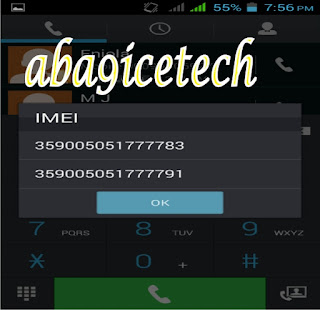
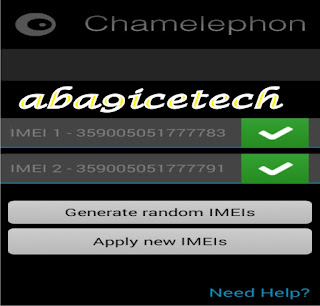
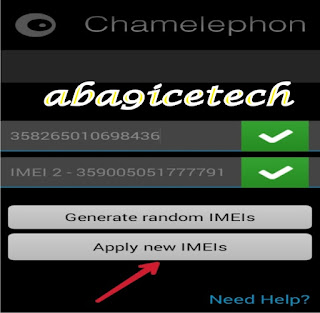
then press apply new imei where the red arrow in screen shoot is facing. then try the code again *#06# to confirm maybe your imei have being change example look at the screen shoot below
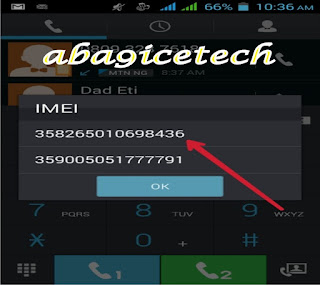
Go to link for download
Monday, May 1, 2017
25 things to know about 500 1000 notes banned in india and how to exchange them
25 things to know about 500 1000 notes banned in india and how to exchange them

?Narendra Modi said that all notes in lower denomination of Rs 100, Rs 50, Rs 20, Rs 10, Rs 5, Rs 2 and Rs 1 and all coins will continue to be valid.
Go to link for download
How To Sign In For Yahoo Messenger Mobile Iphone Pc
How To Sign In For Yahoo Messenger Mobile Iphone Pc

How To Sign In For Yahoo Messenger In Your Mobile, Iphone, Pc
Go to link for download
Sunday, April 30, 2017
How To Enjoy Double Data Bonus On Mtn Family Offer
How To Enjoy Double Data Bonus On Mtn Family Offer
double data bonus actually gives you double the data you purchase for the same amount, which means if you buy the 1.5gb data which goes for N1,000 you will get extra 1.5gb which makes a total of 3gb, if you buy the 3.5gb which goes for N2,000 you will get extra 3.5 gb making a total of 7gb and if you buy 10gb data for N5,000 you will get extra 10gb making a total of 20gb. And this data plan offer will continue like that for the next 6months.
But the problem there is that this offer is exclusive to few devices only. But not to worry, I will not only explain how to subscribe for this offer but also how to be eligible even if you dont own any of the eligible devices. But you might need an MTK device for this.
How To Opt In For The MTN Double Data Offer.
==> First download imei analyser from this link.
==> Copy this first 11 digit of the imei into the imei analyser35660207575
==> Add any three digits of your choice and click on analyze to get a valid imei.
==> Change your current phones imei to the newly generated phantom 5 imei.If you dont know how to change yourimeithen click on this LINK.
==> Toggle your airplane mode (turn your airplane mode on and off).
==> Just wait for a few minutes and you should receive a confirmation message similar to the one in the image below.
==> After that, just dial *123*2*6# or SMS BT to 131 to migrate to mtn beta talk.
Thats all guys,
Now you should start enjoying double the data value of any data plan you purchase for the next 6 months.
If you have any question feel free to subscribe anddont forget to share this post.

Go to link for download